Listen never stores your conversations on our servers. Your audio stays in your personal iCloud Drive, encrypted by Apple. Only the AI processing step transits through our infrastructure, without any retention.
First launch
After installing via TestFlight or the App Store, open Listen. The app asks for microphone permission — grant it. That's the only permission required.
Your first recording
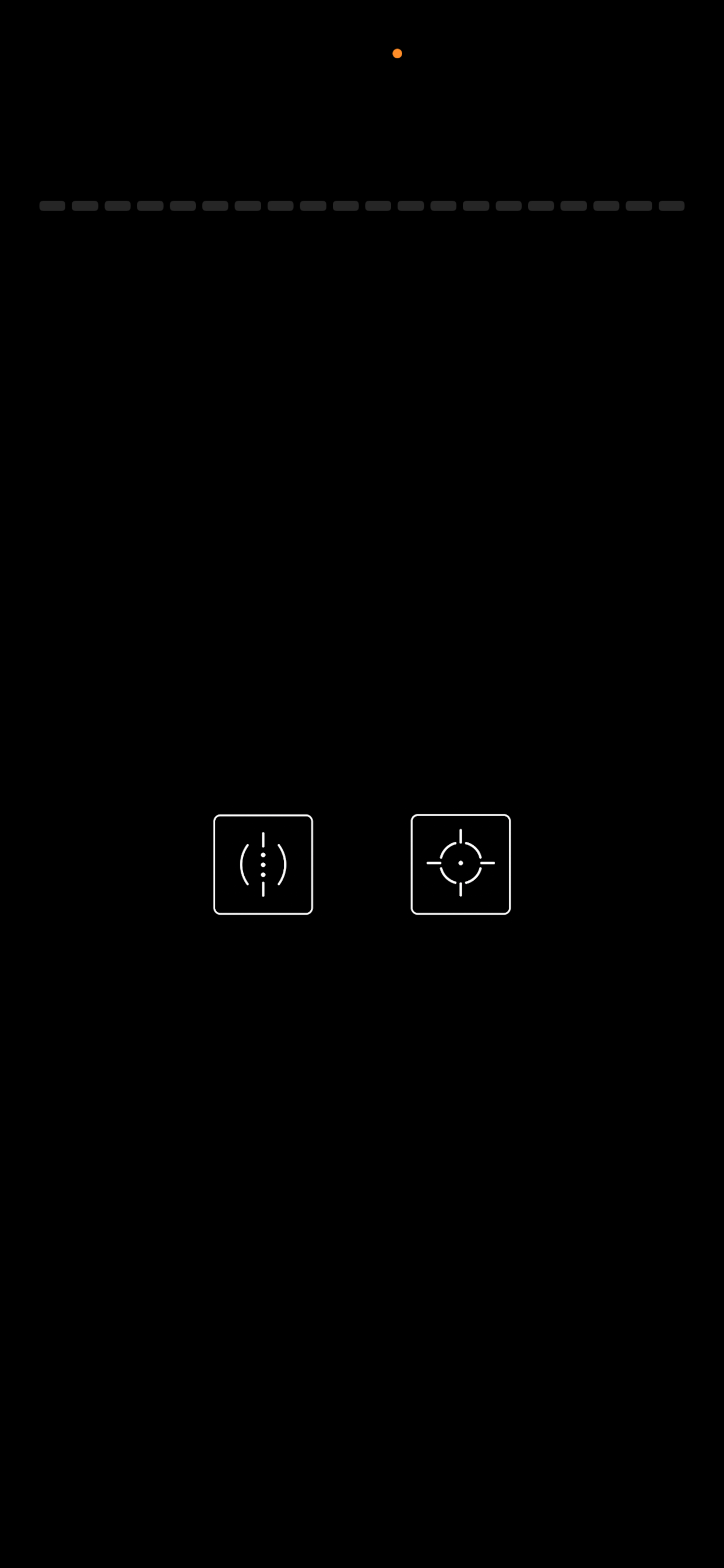
Tap the "Record" tab at bottom left. Confirm consent of people present, then the black screen with green bars appears. Tap Stop to finish.
Each bar represents a 30-second segment processed. More bars = longer session.
Recording with Apple Watch
The Watch app opens automatically from the Watch. Tap the start button. The Watch and iPhone share the same iCloud library.
Understanding transcription
Listen transcribes in 30-second segments during recording. At the end, a diarization step identifies speakers. The result appears in the library.
 Pause
Suspends recording
Pause
Suspends recording
 Stop
Ends and transcribes
Stop
Ends and transcribes
 Resume
s after pause
Resume
Resumes after pause
The library
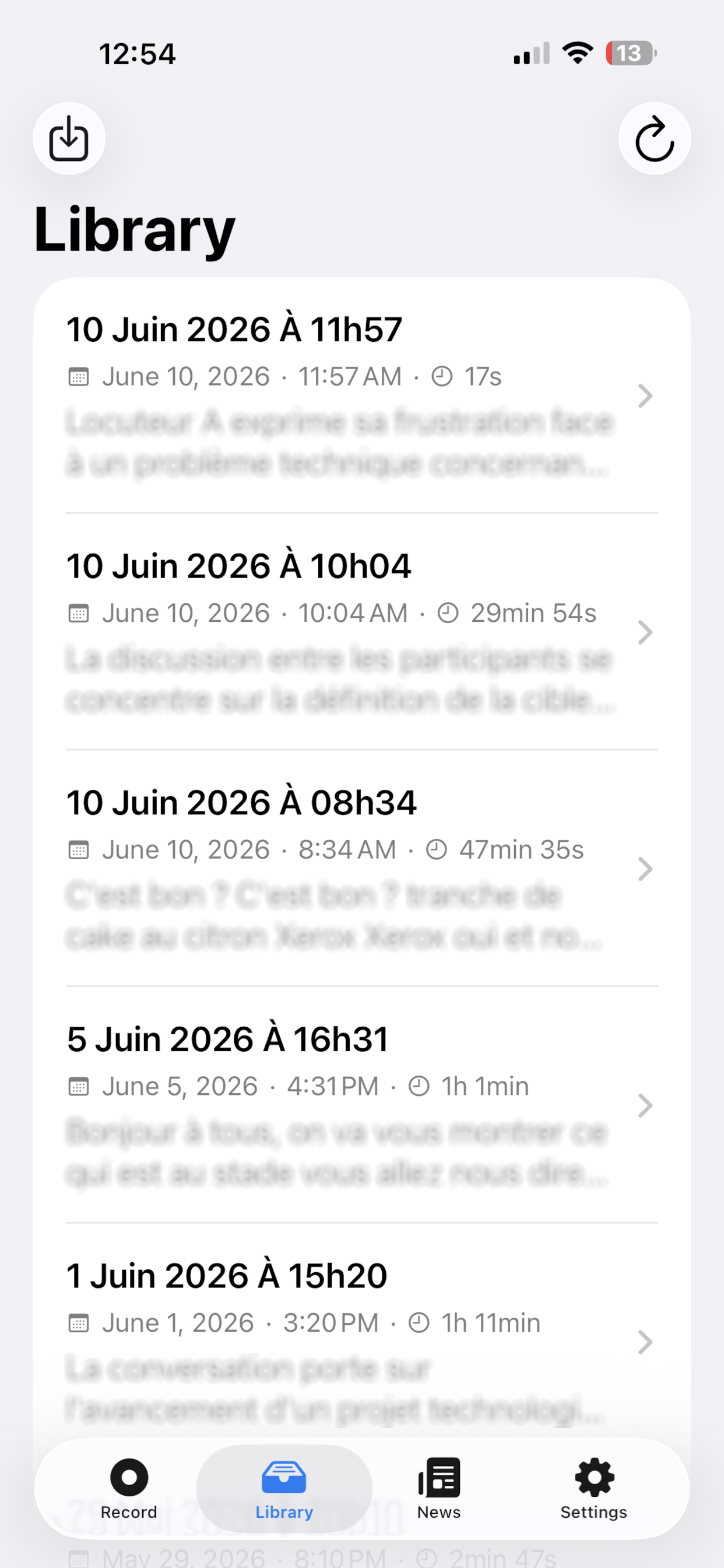
All your recordings are listed with title, date, duration and text preview. Swipe left to delete. Tap to see details.
Import an audio file
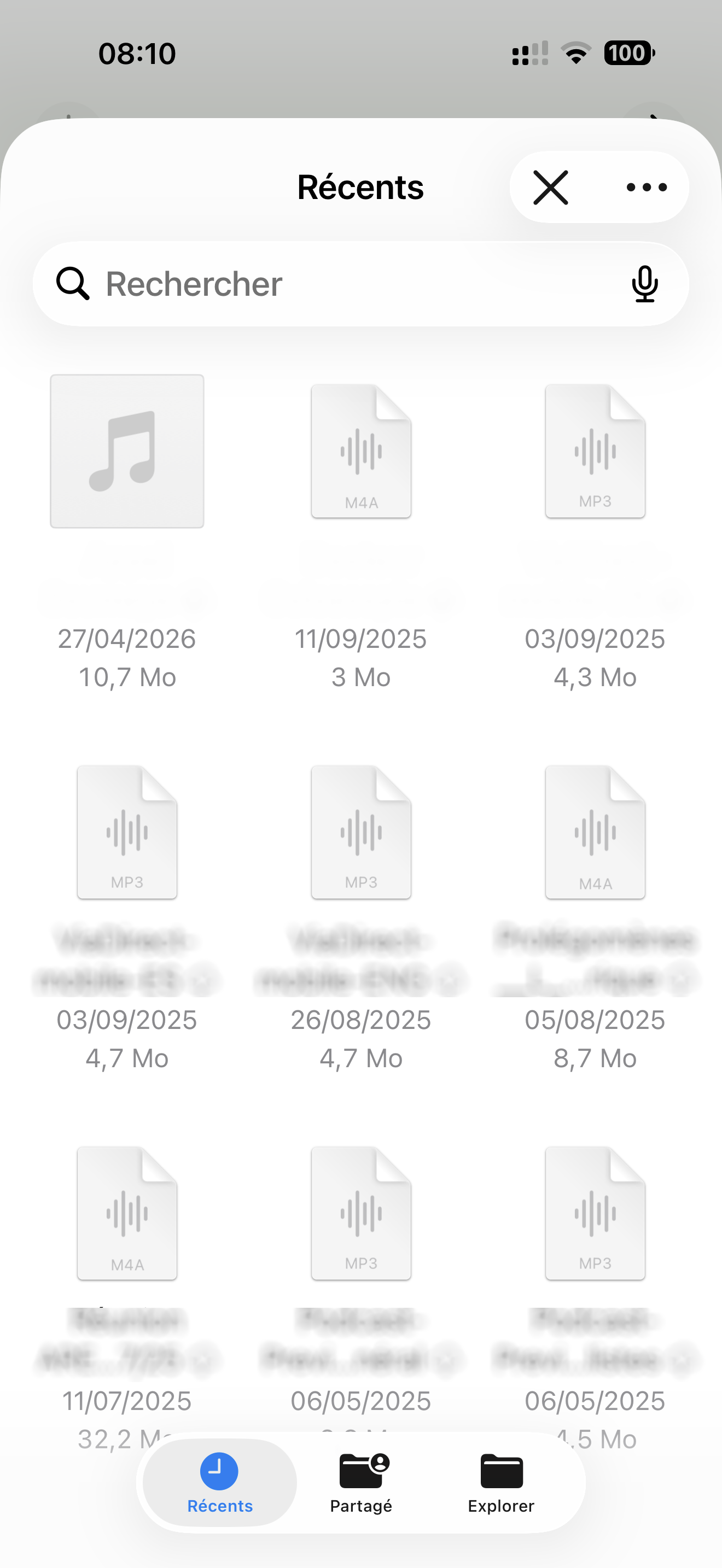
Tap the ↓ button at the top left of the Library to import an existing file (Dictaphone, other app, email…). It will be transcribed just like a direct recording.
🎤 iPhone Voice Memos (Dictaphone) → M4A, directly compatible
⚠️ Max 25 MB (~50 min M4A standard, ~26 min MP3 128 kbps)
Re-transcribe and Analyze
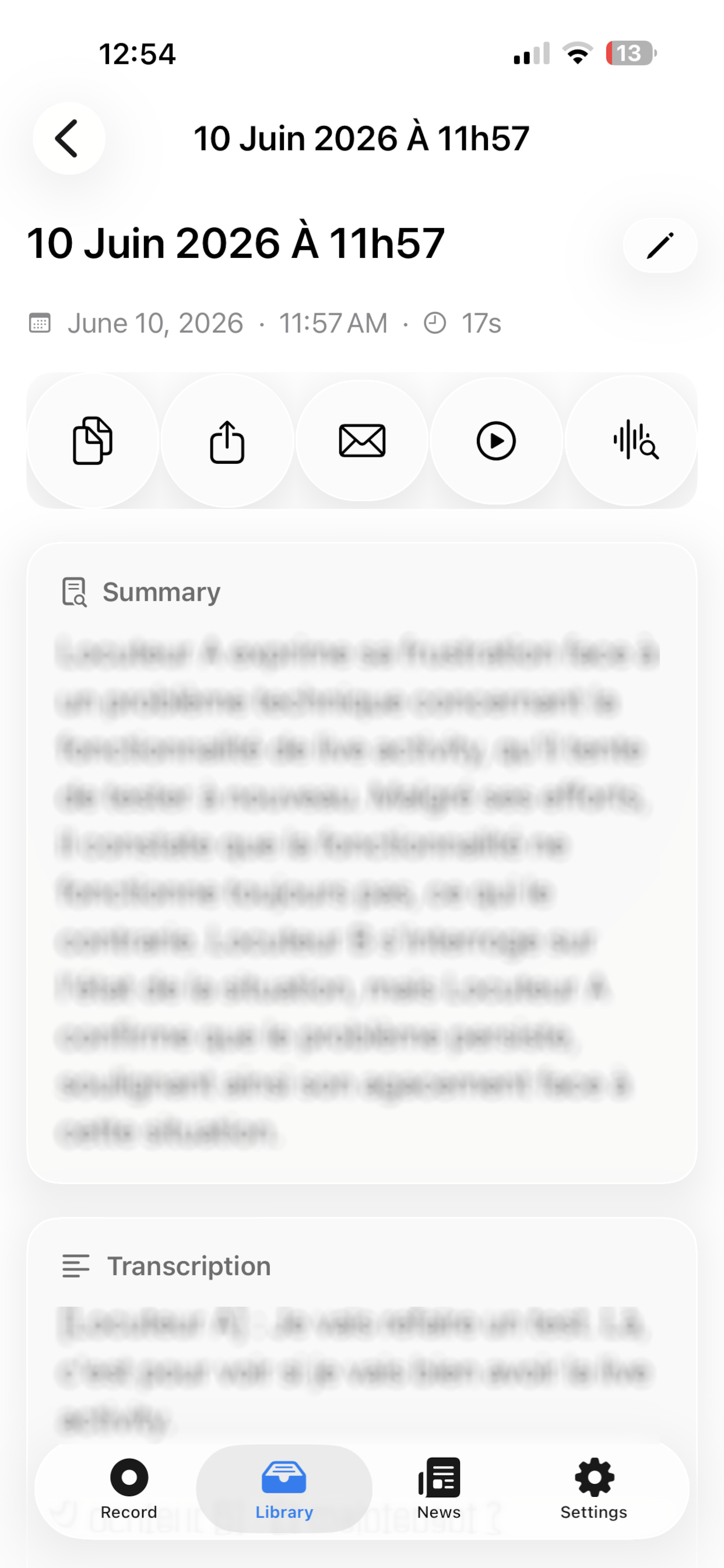
If transcription is incomplete or you switch engine, use "Re-transcribe". "Analyze" regenerates the summary and decisions/tasks from the existing transcript.
Summary and Decisions/Tasks
After each recording, AI automatically generates a summary and extracts decisions made and tasks to do. Tasks are checkable directly in the app.
Enriched email in your language
The automatic email contains: summary, decisions, tasks and full transcription — in your iPhone language (French, English or Spanish).
Your personal API keys
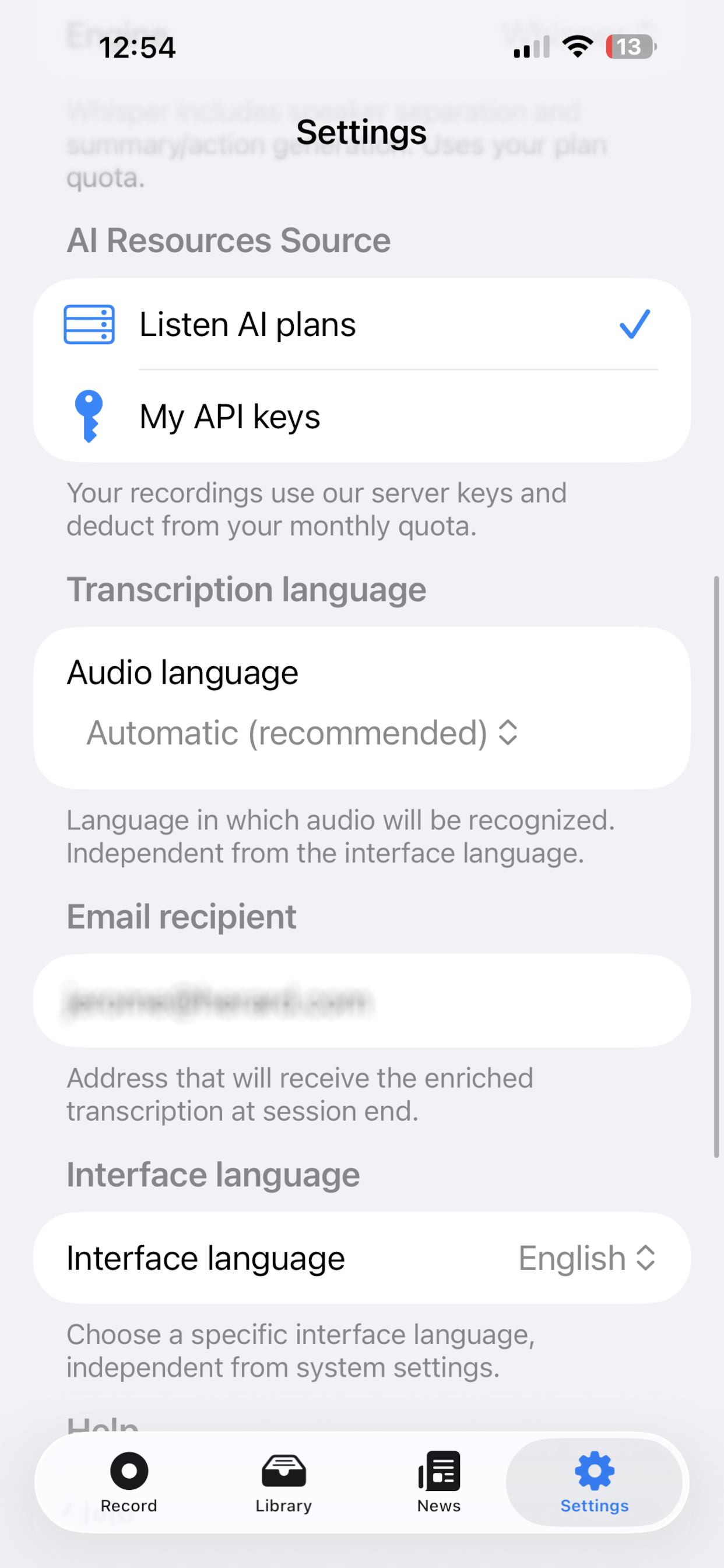
In Settings, enter your own OpenAI key (sk-…) and/or Gladia key. They will be used instead of server keys — your monthly quota is not counted.
Privacy — nothing stored on our servers
No conversation is stored with us. Audio stays in your iCloud Drive (Apple encrypted). Transcriptions are processed in transit by the AI API, then immediately deleted.
Ready to get started?
Download →